
100% free · Your files never leave your browser · No signup needed
Use commas and ranges, e.g. 2, 5-7. Page numbers start at 1.
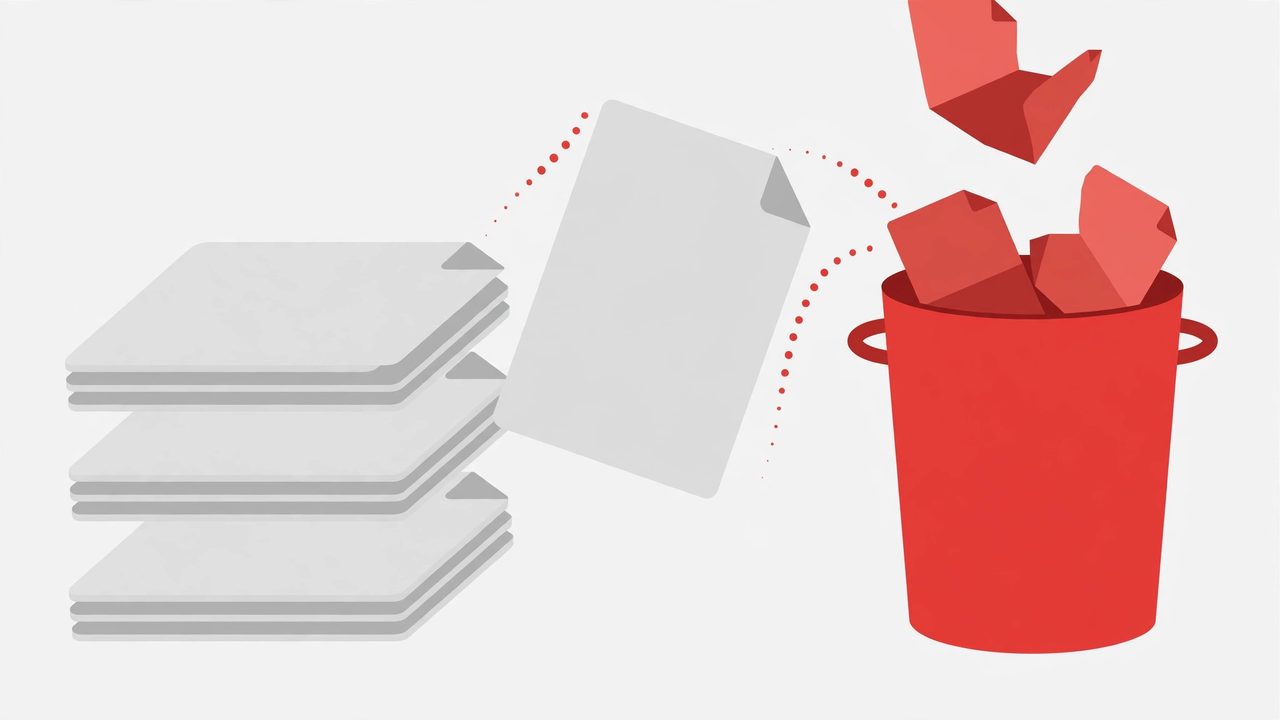
The Delete PDF Pages tool removes exactly the pages you choose from a PDF - by individual page number or ranges like "2, 5-7" - and returns a clean new file with every remaining page preserved in its original order and quality.
How to use: 1) Drop your PDF into the upload box - the tool immediately shows how many pages it contains. 2) Type the pages to delete, e.g. 2, 5-7, 10 (page numbers start at 1). 3) Click Delete Pages. 4) Download the new PDF with only your chosen pages removed.
Why delete PDF pages? PDFs accumulate junk: blank cover pages from scanners, draft pages that were never meant to ship, duplicate pages from bad merges, or confidential pages that must not be shared with a particular recipient. Rebuilding the whole document in an editor is overkill - deleting the offending pages takes seconds, and everything else stays byte-identical. It is also the fastest way to trim a long report down to just the section a client asked for. Students remove blank pages from scanned notes, and offices strip outdated appendices before archiving.
Private by design: Like all FistHost PDF tools, page deletion runs entirely in your browser using the open-source pdf-lib engine. Your document is never uploaded to any server - which is exactly what you want when removing sensitive pages from confidential files. The tool validates your ranges before touching anything: out-of-range numbers, backwards ranges like "7-5", and attempts to delete every page are all caught with clear messages.
Pro tips: If you need to keep only a few pages from a long document, it is faster to list the pages to delete - but for keeping under 20% of pages, Split PDF may be quicker. Double-check your range syntax before clicking: "5-7" deletes three pages (5, 6 and 7). Keep the original file until you have verified the result - storage is cheap, rework is not. For password-protected files, remove the password first with the Unlock PDF tool, then delete pages.
FAQs: Can I delete all pages? No - at least one page must remain, and the tool blocks that mistake with a warning. Do the remaining pages get renumbered? They keep their original relative order; nothing else changes. Will quality change? No - kept pages are copied without re-rendering, so text and images are untouched. What about password-protected PDFs? Encrypted PDFs cannot be processed; remove the password first, then delete pages.
No reviews yet. Be the first to review this tool!
Reviews are protected by captcha and moderated before they appear.